What Is Conditional Access in Microsoft Entra? 3 Essential Policies Explained
- Konstantin Slavin-Borovskij
- Conditional access , Security
- November 17, 2025
Table of Contents
What is it?
Think of Microsoft Entra Conditional Access (CA) as a smart bouncer for your cloud services. It’s an If-Then engine.
- IF a user (like
[email protected]) - AND a condition (like
is in China,is on an unknown device, oris an admin) - TRIES to access an app (like
Office 365orSalesforce) - THEN CA enforces a control (like
Grant Access,Block Access, orRequire MFA).
It’s the core of a modern, Zero Trust security model. Instead of just “is the password right?”, it asks “is the entire context of this sign-in safe?”
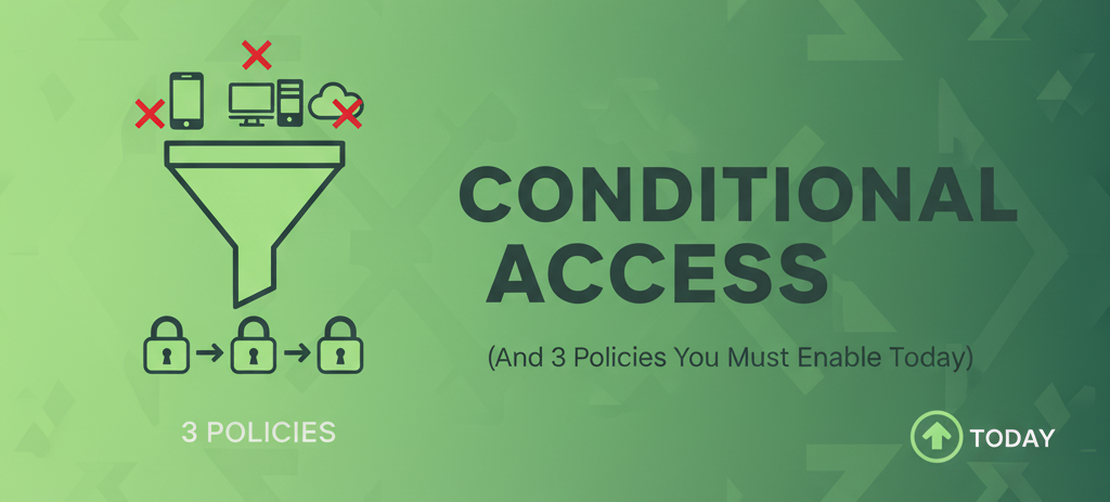
3 Policies to Enable Today
1. Block Legacy Authentication
- What: Block basic auth protocols that bypass MFA (POP/IMAP, older Office clients).
- Why: This is the #1 vector for credential theft. Old apps that don’t support modern auth (like old mail clients) can’t handle MFA. Attackers hammer these protocols with stolen passwords.
- How: Conditions: Client apps = Other clients/legacy, Grant: Block access.
Tips:
- Inventory dependencies (copiers/scanners/SMTP relays) and migrate to modern auth.
- Stage: Pilot → expand → enforce; log in report-only first.
2. Require MFA for All Administrators
- What: Enforce MFA for all admin accounts (exclude break-glass & emergency access).
- Why: Your admin accounts (Global Admin, Security Admin, etc.) are the keys to the kingdom.Protecting them is non-negotiable.
- How: Target all directory roles, “All cloud apps”, Grant: Require multifactor authentication.
Tips:
- Use Security defaults or Authentication Strengths for phishing-resistant MFA when available.
- Monitor new risky sign-ins after rollout.
3. Require Compliant or Hybrid-Joined Devices
- What: Ensure devices meet posture (Intune compliant) or are domain/hybrid joined.
- Why: Making sure that authorized logins are only allowed from trusted devices considerably limits your exposure.
- How: Condition: All cloud apps (or Tier‑0 apps first), Grant: Require device to be marked as compliant OR Require hybrid Azure AD joined device.
Tips:
- Start with Exchange/SharePoint/Teams; expand to all apps after telemetry review.
- Consider trusted locations exception for break-glass only (avoid weakening posture).
Bonus: Require MFA for All Users
The next crucial step is requiring MFA for all users, hardening the overall attack vector.
- What: Enforce MFA for all cloud apps (exclude break-glass & emergency access).
- Why: Passwords are broken. A simple MFA push, code, or tap protects against 99.9% of common password-based attacks.
- How: Target “All users”, “All cloud apps”, Grant: Require multifactor authentication.
Tips:
- Use Security defaults or Authentication Strengths for phishing-resistant MFA when available.
- Monitor new risky sign-ins after rollout.
Break-Glass Accounts
- Create 2 emergency access accounts with strong passwords and FIDO2 hardware keys, monitored, stored safely.
- Exclude these from all CA policies; test quarterly.
- Read more in my Configuring emergency Entra accounts post.
Operationalizing
- Use report-only mode → review sign-in logs → move to on.
- Document exception handling and expiry (Justification + Owner + Review date).
Conclusion
Don’t wait. These three policies can be set up in under an hour and will drastically improve your security posture.
Microsoft Learn Links:
What is Conditional Access?: https://learn.microsoft.com/en-us/entra/identity/conditional-access/overview
Plan your deployment: https://learn.microsoft.com/en-us/entra/identity/conditional-access/plan-conditional-access